










 TV Operators
  Healthcare
  Digital Signage
  Hospitality
  Education








 TV Operators
  Healthcare
  Digital Signage
  Hospitality
  Education
Overview
The Radix Device Management Platform has several security features that protect remote devices if they are lost or stolen. Firstly, the Overview Dashboard of the Device Manager has a map that displays the most recent location of your devices. If you are certain that your remote device has been lost or stolen, there are security features to:
- Sound a siren on the device,
- Shut down the device,
- Wipe the data from the device and restore it to factory settings, or
- Lock the device.
There is also the Schedule and Trigger feature in the Radix Device Management Platform, which you can use in tandem with the above four commands to protect a device if the device leaves a certain defined area or disconnects from a particular Wi-Fi network.
(For example, click here for an illustration of using the Geofencing Trigger Option together with the Lock Device command.)
Options to Locate a Device
When you log in to the Radix Device Management Platform, the middle pane displays the number of connected devices, a map of the location where your devices were last seen, and their IP addresses. The map can give you a general idea of where a device is located. And you can use an IP lookup tool for additional information to locate a device based on its IP address.
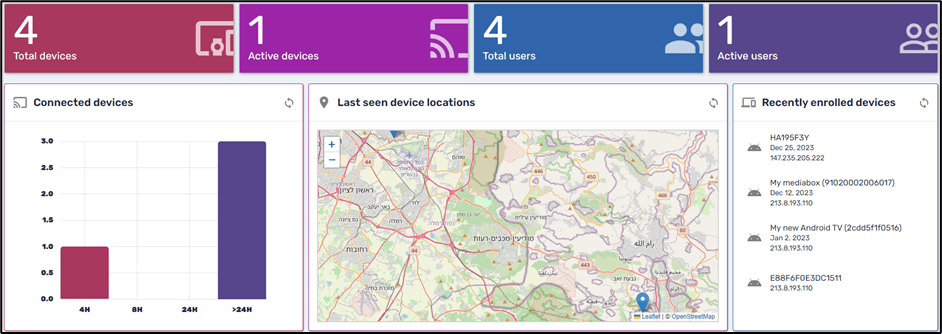
Overview Dashboard–Middle Panes
There is also a map option in the Device Dashboard. This allows you to see the geographical location of the device, according to Google Information Services.
To access the map in the Device Dashboard:
1. Click on Devices in the sidebar menu to open the Devices Console.
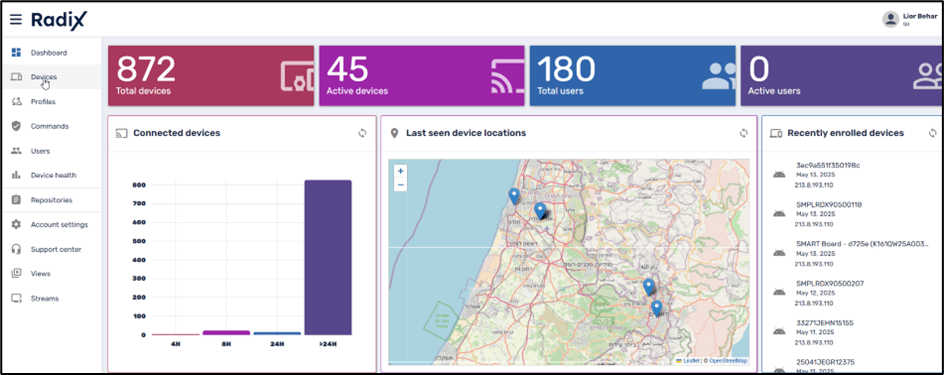
2. Click on the row of the device that you would like to locate.

The Device Dashboard opens.
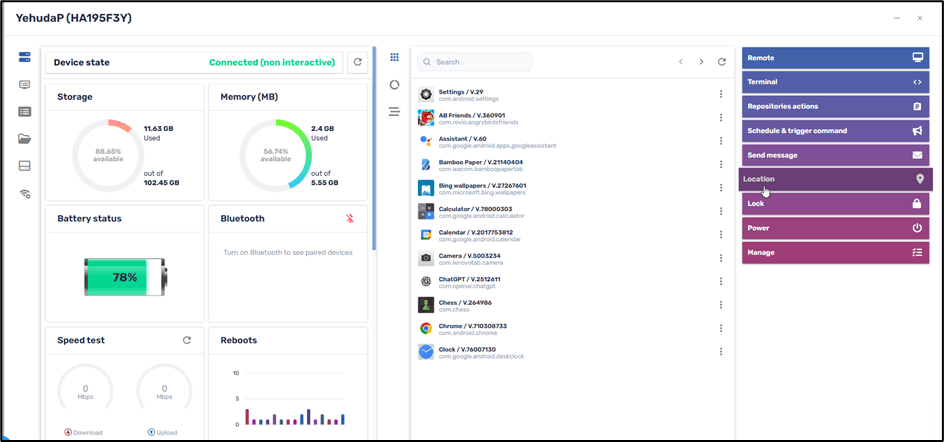
3. In the menu on the right, click on Location. This displays a map showing where each device in your fleet is currently located.
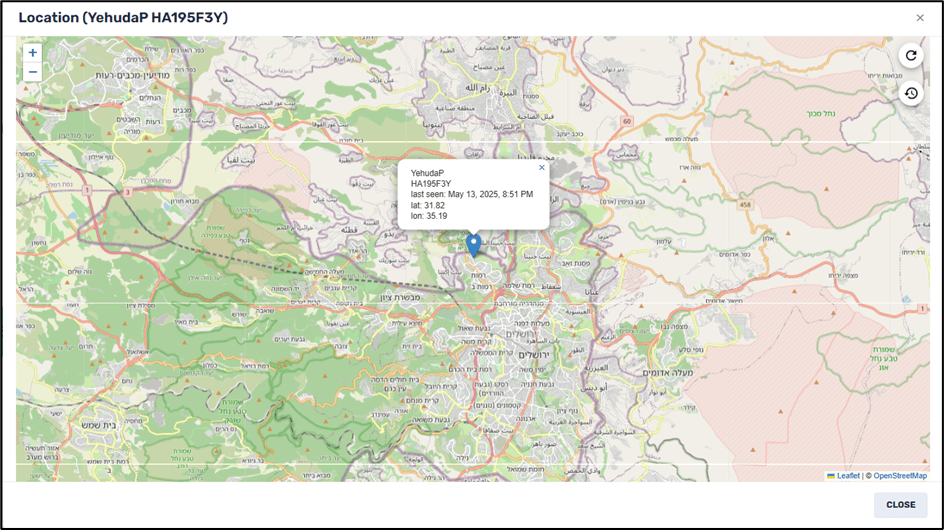
4. You can zoom in on the map, and you can even locate the street where the device was last located:
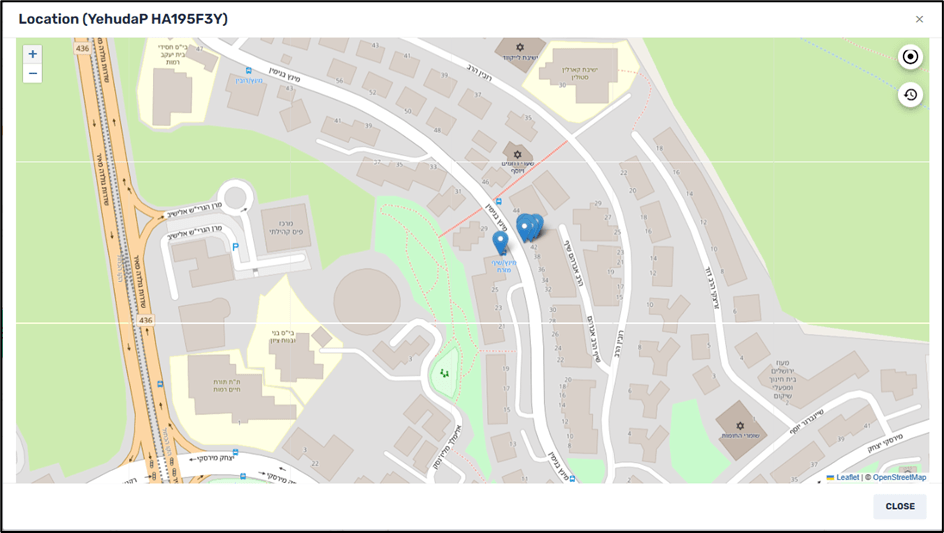
5. It is also possible to view previous locations of the device. In the upper right corner of the map, there is a Location History button.
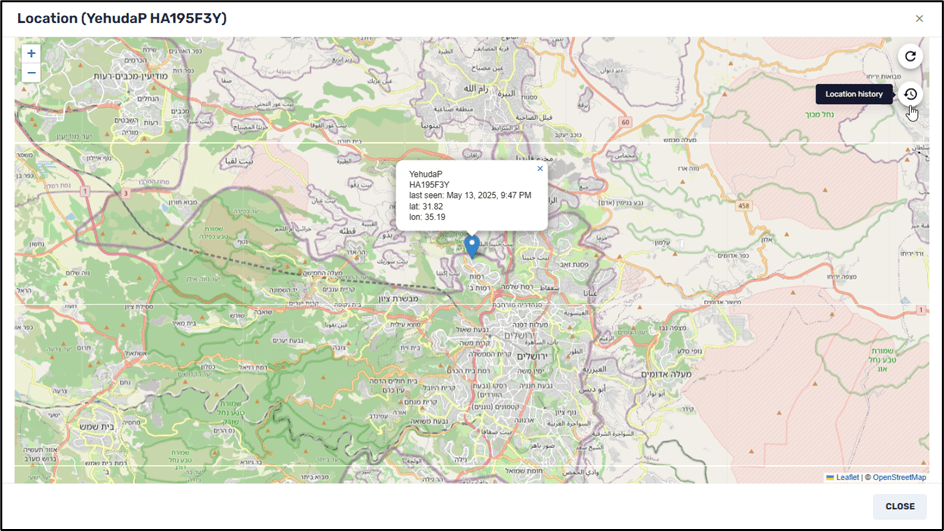
6. If you click on Location History, you can see all of the locations of the device over a range of dates:
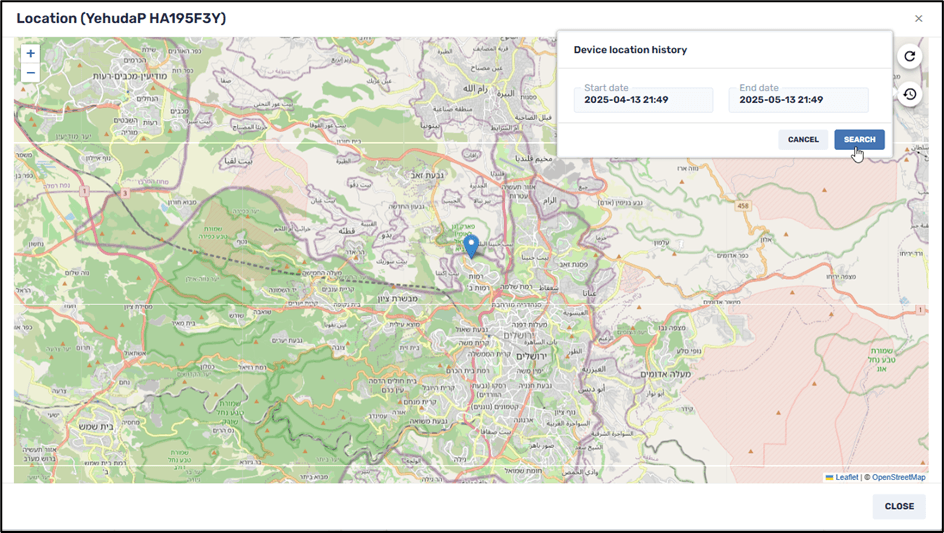
7. Click on Search to display all of the device locations:
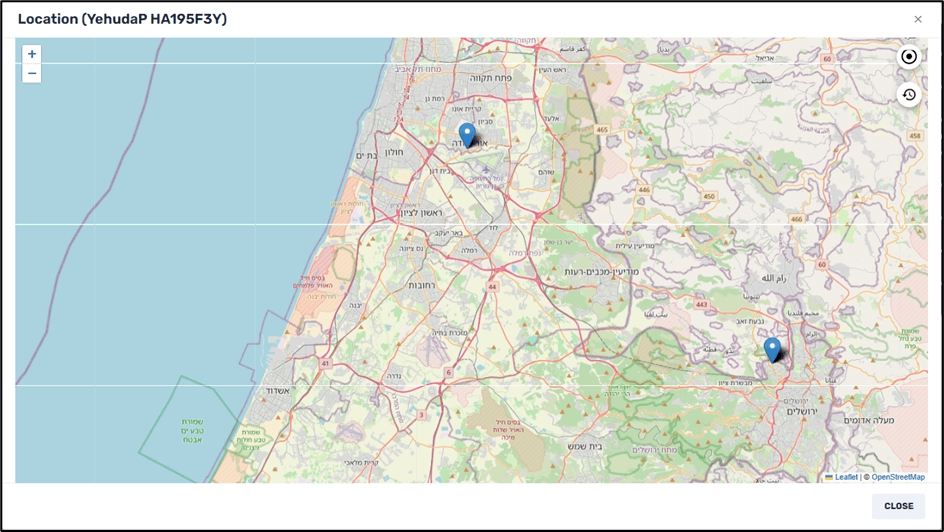
Security Options
Sound Siren Option
This security feature sounds an alarm on the remote device. If you have misplaced a device, you can sound the alarm to help locate it. Also, this may be handy in an emergency situation or if the device has been stolen. As we will see in the Geolocation trigger option, you can instruct the device to sound off the alarm if it is taken outside a specified geographical area.
To sound the siren on a device:
1. Click on Devices in the sidebar menu in the Radix Device Manager to open the Devices Console.
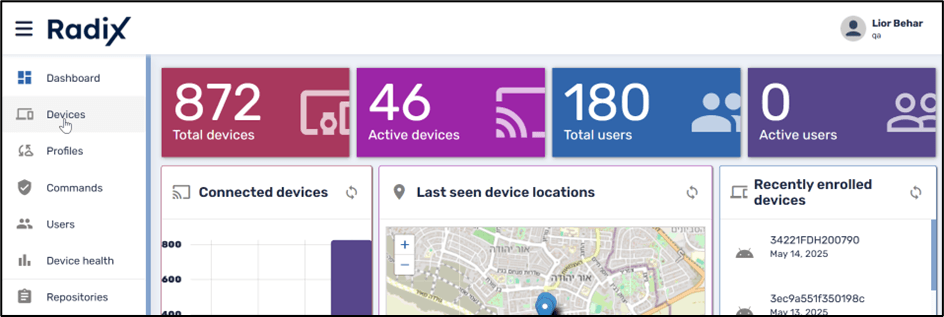
2. In the Devices Console, find the device on which you wish to sound the alarm, and click anywhere on the row of that device to open the Device Dashboard:

3. In the Device Dashboard, click on Lock in the menu on the right, and select Siren:
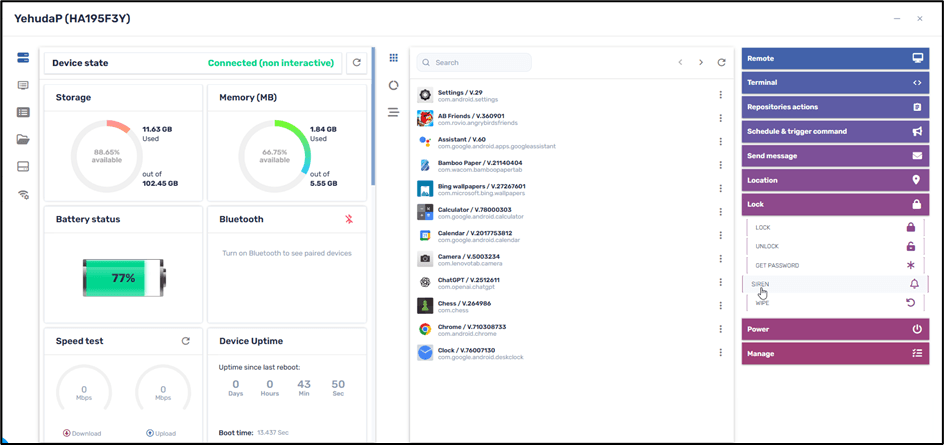
You will receive a prompt asking whether you are sure that you want to sound the device’s siren:
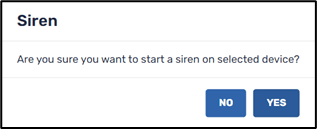
4. Click Yes to sound the device’s siren.
Shutdown Option
Another security feature that you can use on a lost or stolen remote device is to shut the device down remotely. If the remote device is password protected, it will prevent anyone else from accessing the information on the device.
To shut down a device:
1. Click on Devices in the sidebar menu in the Radix Device Manager to open the Devices Console.
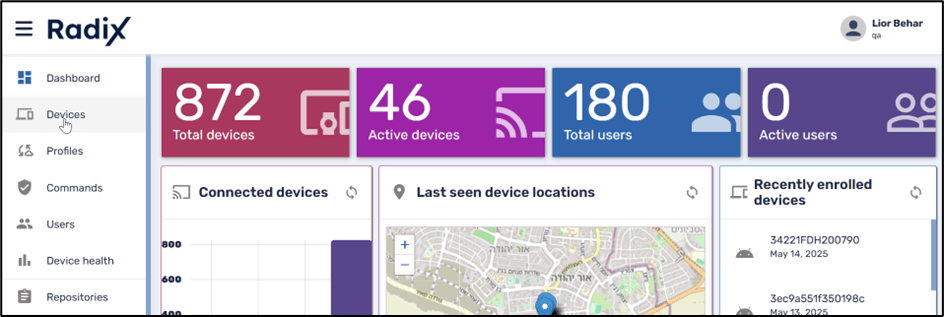
2. In the Devices Console, find the device on which you wish to shut down, and click anywhere on the row of that device to open the Device Dashboard:

3. In the Device Dashboard, click on Power in the menu on the right, and select Shutdown:
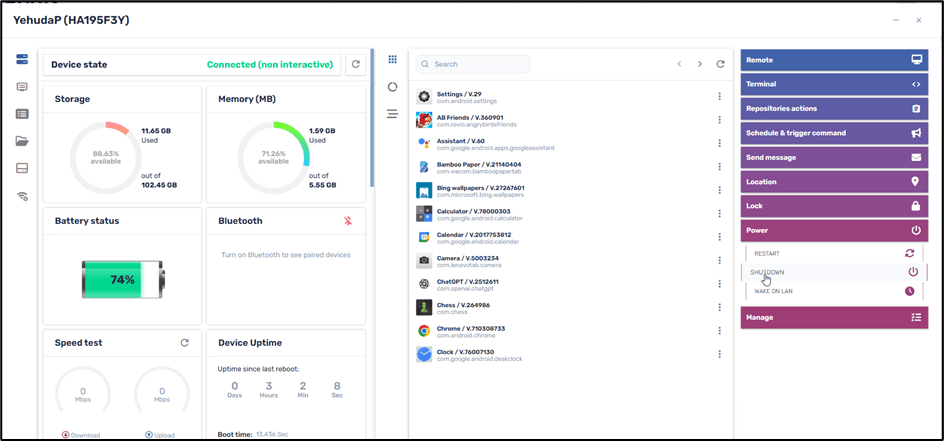
You will receive a prompt asking whether you are sure that you want to shut the device down:
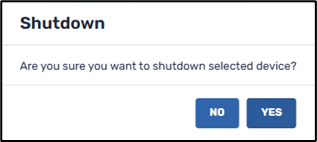
4. Click Yes to shut down the device.
Wipe a Device Option
The data on a remote device may be more valuable than the device itself. The Wipe Device security feature wipes the data from a remote device and restores it to factory settings. If you have misplaced a remote device and you are concerned that sensitive information may fall into the wrong hands, this option allows you to wipe any data from the device.
To wipe data from a device:
1. Click on Devices in the sidebar menu in the Radix Device Manager to open the Devices Console.
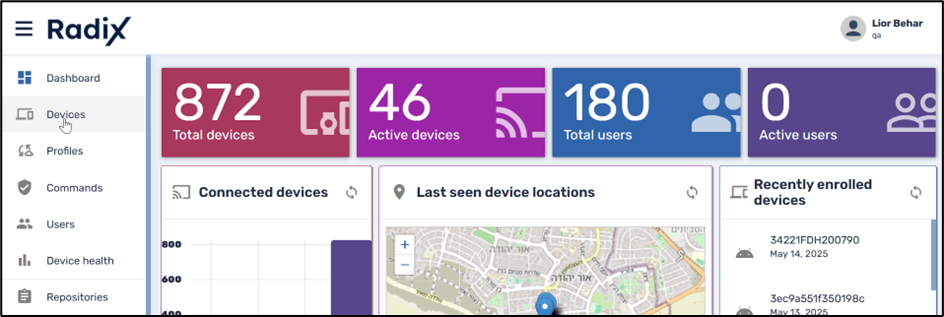
2. In the Devices Console, find the device on which you wish to erase its data, and click anywhere on the row of that device to open the Device Dashboard:

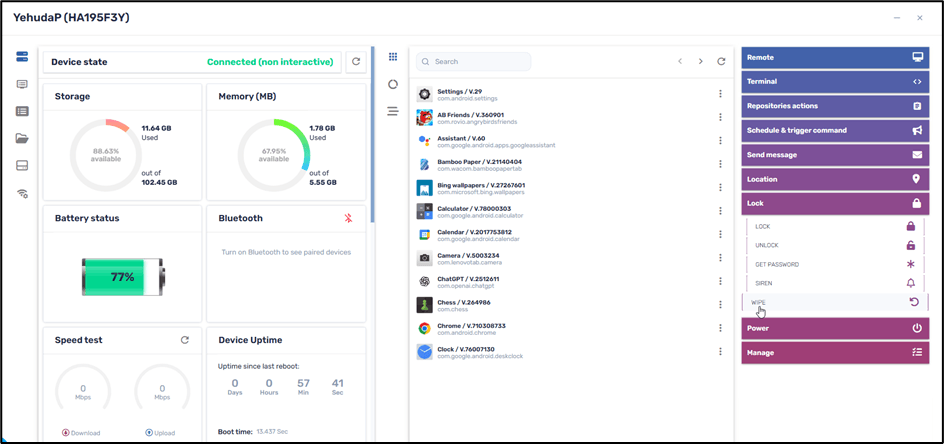
3. In the Device Dashboard, click on Lock in the menu on the right, and select Wipe:
You will receive a prompt asking whether you are sure that you want to erase the device’s data:
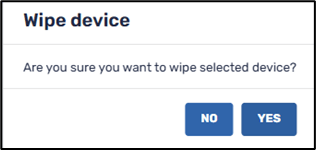
4. Click Yes to wipe the data from the selected device.
Lock Device Options
There is also an option to lock a remote device. This is another option to protect a lost or stolen device.
(This feature is useful primarily if you have Windows devices in your fleet, although it can be configured to work for Android as well.)
To lock a device:
1. Click on Devices in the sidebar menu in the Radix Device Manager to open the Devices Console.
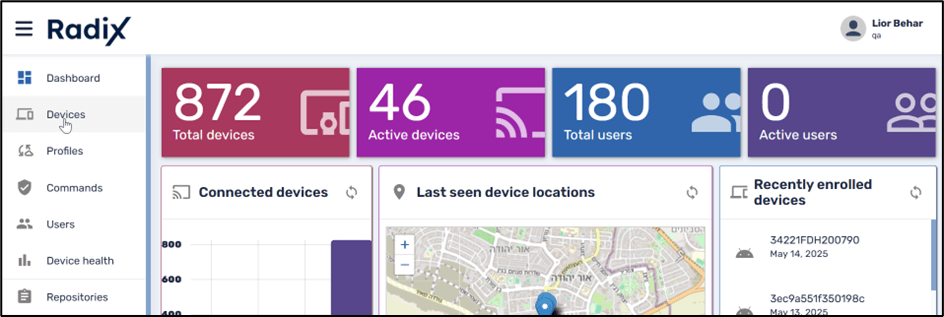
2. In the Devices Console, find the device on which you wish to erase its data, and click anywhere on the row of that device to open the Device Dashboard:

3. In the Device Dashboard, click on Lock in the menu on the right, and select Lock:
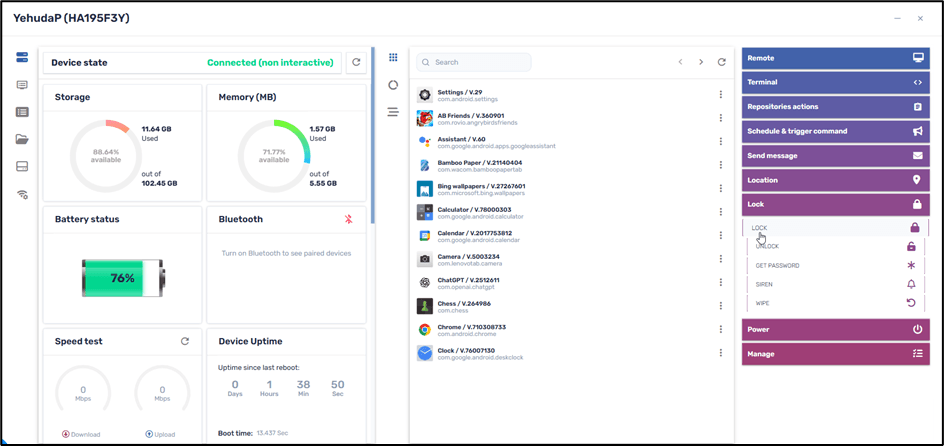
You will receive a prompt asking whether you are sure that you want to lock the device:
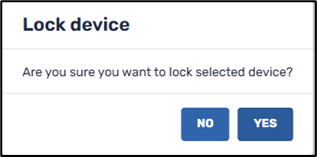
4. Click Yes to lock the remote device.
Unlocking a device
Once you have locked a device, there are two options to unlock the device:
Option 1: From the Radix Device Manager
1. The administrator must click on the Devices icon in the sidebar menu to open the Device Console.
2. The administrator should find the locked device in the list of devices in the Device Console.
3. The administrator should open the device’s Device Dashboard and then click Lock>Unlock.
4. The administrator will receive a prompt, asking them to verify that they want to unlock the device:
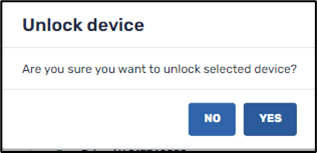
Clicking Yes will unlock the remote device.
Option 2: For the remote device user
There is also an option for the remote device user to unlock their device. This may be useful if the administrator locked a lost device, and then the remote user finds the device and wants to unlock it themselves.
To unlock a locked (Windows) device:
1. Press the key combination Alt-Ctrl-Shift-F9. You will receive a prompt requesting the device password:

2. Enter the device password and click OK. If you do not know the password, ask the Administrator to retrieve it by clicking on the Get Password command in the Device Dashboard.
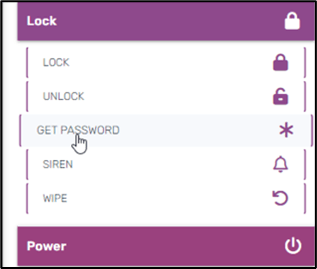
The following window opens, displaying the password to unlock the device:
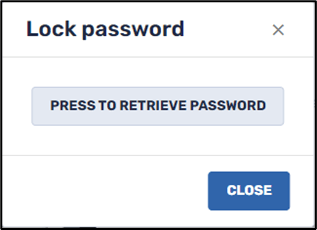
3. The Administrator clicks Press to Retrieve Password to display the device password:
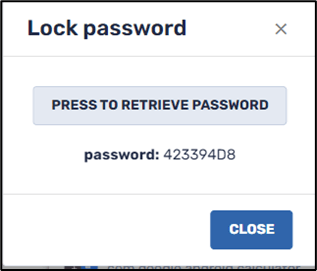
4. When the remote device user enters the password, this should unlock their device.