









 TV Operators
  Healthcare
  Digital Signage
  Hospitality
  Education






 TV Operators
  Healthcare
  Digital Signage
  Hospitality
  Education
Overview
Once you display a Stream on remote devices, the devices continue to display the Stream according to their assigned schedule. To stop a Stream from being displayed on the remote devices, you must modify the Stream and disassociate the devices from that Stream.
You can disassociate a device from a Stream in one of two ways:
- Removing the Group from the Stream
- Removing the identifying tag from the device running the Stream
If you assign a group to two Streams at once, the devices in the group will start displaying the second Stream as soon as you disassociate the group from the first Stream.
Method One: Removing the Group
To remove a group to which you have applied the Stream:
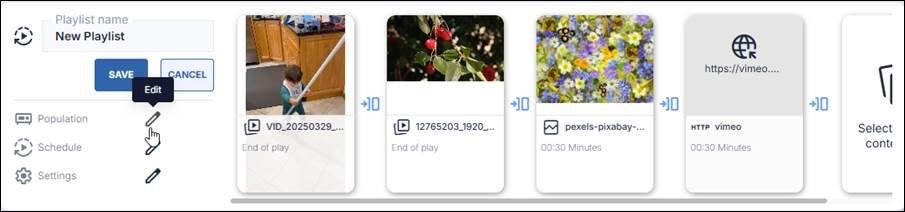
1. Click the Edit Stream icon on the Stream that is currently running.
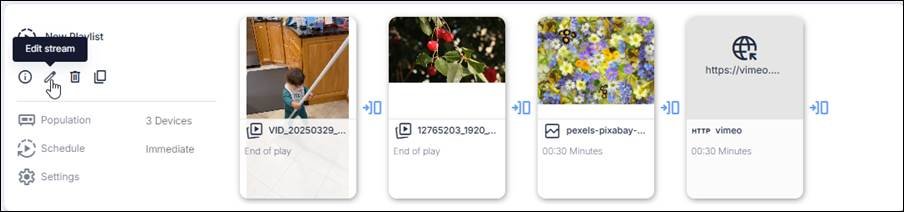
2. Click on the Edit icon near the Population option.
3. In the Population window, click on the Remove icon to disassociate the group from the Stream.
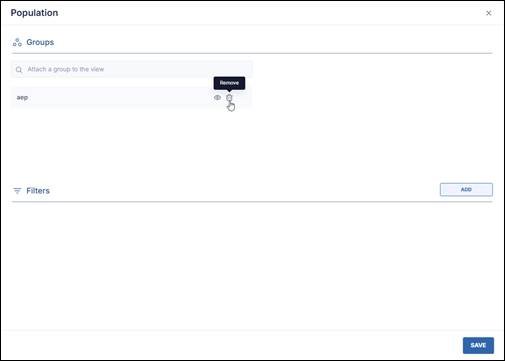
4. Click the Save button in the lower right corner.
5. Click on the Save button in the Stream display to save the new Stream configuration.
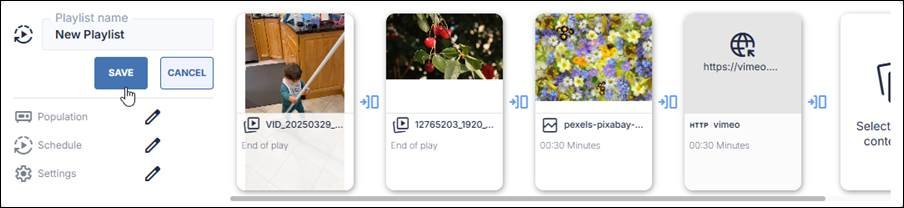
The Stream will stop displaying on the devices in the group.
Method Two: Removing the Tag
Another method of stopping a device from displaying the Stream is to remove the identifying tag from the individual device or group of devices. This will also disassociate that device from the Stream.
Note: You can apply this option only to individual devices in a group. You cannot perform this on all of the devices in the group at once with a single command.
To remove the tag from an individual device:
1. Click on the Devices icon in the sidebar menu of the Radix Device Management platform to open the Devices Console.
2. In the Devices Console, find the device from which you wish to delete the tag that associates the device with the Stream. In our example, we want to remove the tag from the device “HA195F3Y”.
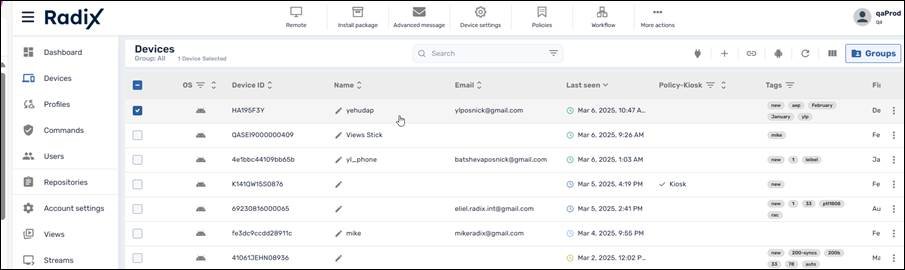
3. Click on the row of that device to open its Device Dashboard.
4. In the Device Dashboard, go to Manage>Tags.
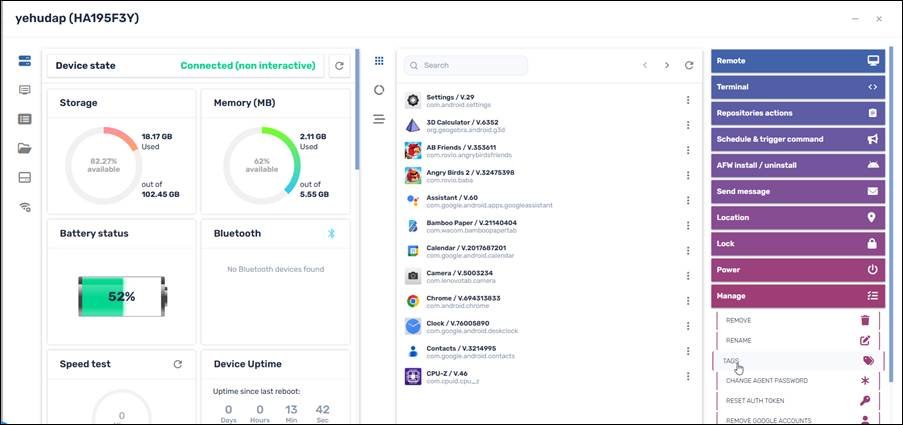
5. In the Tags window, delete the tag that associates the device with this group. In our case, we will delete the tag “aep”. Click on the x icon to delete that tag.
6. Click Confirm to finalize the changes to the device.
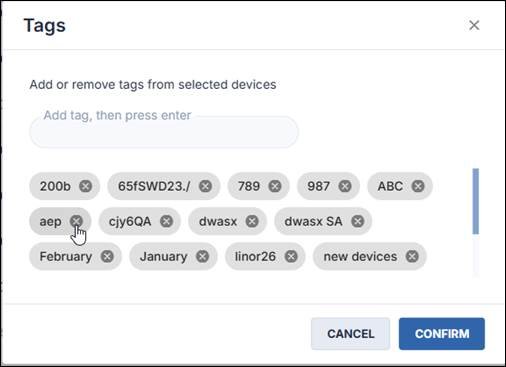
The selected device will stop displaying the Stream.
Resuming a Stream
If you have stopped running a stream on a device by removing its tag, you can resume displaying the stream by simply restoring the tag to the device.
Restoring a Tag to Resume Playing a Stream
To have the device resume displaying the Stream:
1. As before, click on the Devices icon to go to the Devices Console.
2. Find the device in the list and click on its row to open its Device Dashboard.
3. In the Device Dashboard, go to Manage>Tags.
4. In the Tags window, add the tag and press Enter. In our example, we will reassign the tag “aep”.
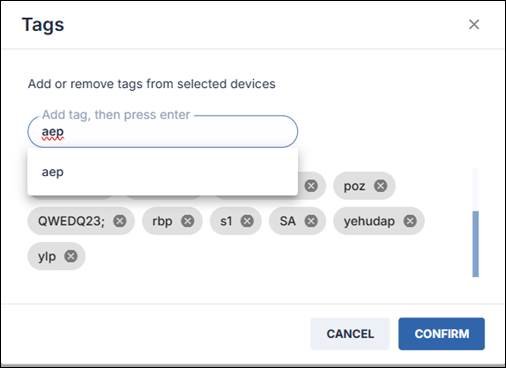
5. Click Confirm to finalize restoring the tag to the device. The device will resume displaying the Stream once again.