











 TV Operators
  Healthcare
  Digital Signage
  Hospitality
  Education








 TV Operators
  Healthcare
  Digital Signage
  Hospitality
  Education
Overview
The Radix Device Management Platform includes a Live Terminal command for a remote Android device in your fleet. It opens a fully featured, live terminal with an ADB (=Android Debug Bridge) shell connection. The live terminal allows you to remotely debug an issue with a device, run exec scripts remotely, or download log files of Android commands. We will illustrate how to use terminal commands to pull log files of commands to the device.
Accessing the Live Terminal
You can access the live terminal from the Device Dashboard.
To access the Live Terminal:
1. Click on the Devices icon in the sidebar menu.
2. Click on the row of the device that you wish to access.
3. Click on Terminal in the Device Dashboard of that device.
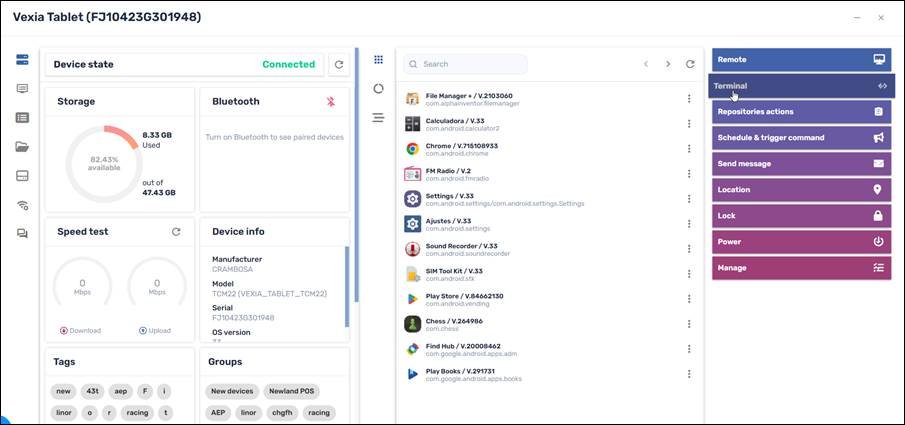
The Live Terminal opens:
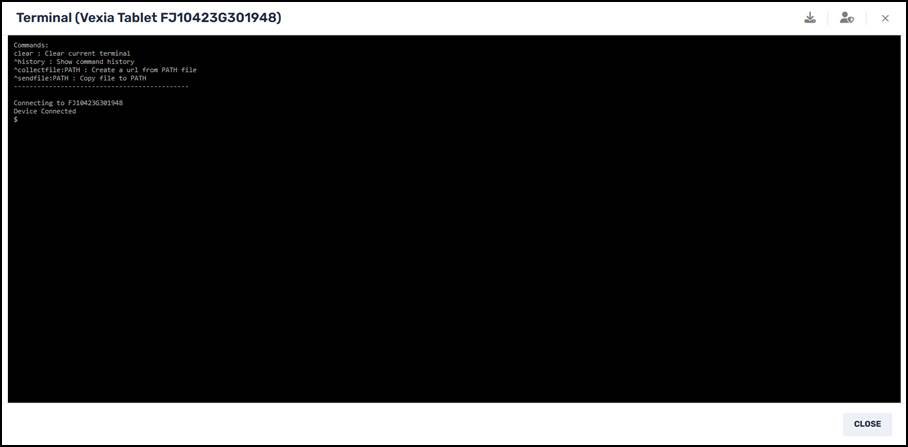
Terminal Commands to View a Log File
Finding Your User ID
To see your user ID, use the following Android command:
whoamiHere is an example of running the whoami command:
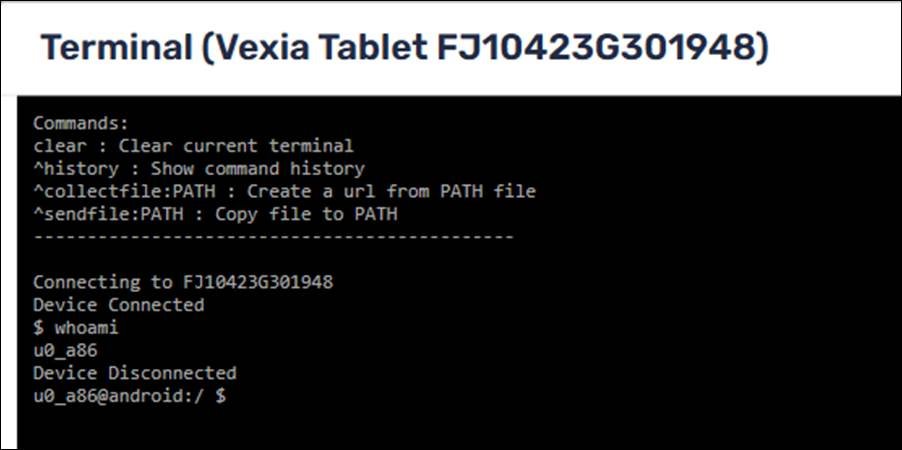
The result is “u0_a86”. The “u0” means User ID 0.
Viewing a list of log files currently on the device
To see the log files currently on the device, use the following ls command:
ls /data/user/0/com.viso.mdm/files/If the device User ID is something other than “0”, replace “0” with that User ID number.
Here is an example of the execution of the above command:
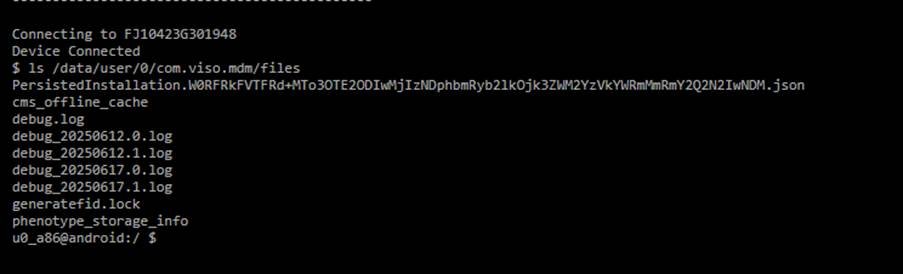
We see that there are five *.log files currently on the device.
Pulling the Log Files
To download one of the log files:
1. Enter the following command at the command prompt:
^collectfile:/data/user/0/com.viso.mdm/files/debug_YYYYMMDD.0.logwhere you give the date of the log file in the format YYYYMMDD.
As an example of the above command, we will download the file debug_20250617.0.log.
2. We enter the command:
^collectfile:/data/user/0/com.viso.mdm/files/debug_20250617.0.log.
The Radix Device Management Platform provides us with a URL where we can download the log file.
3. Place your cursor on the URL, and right-click with your mouse to display the file:
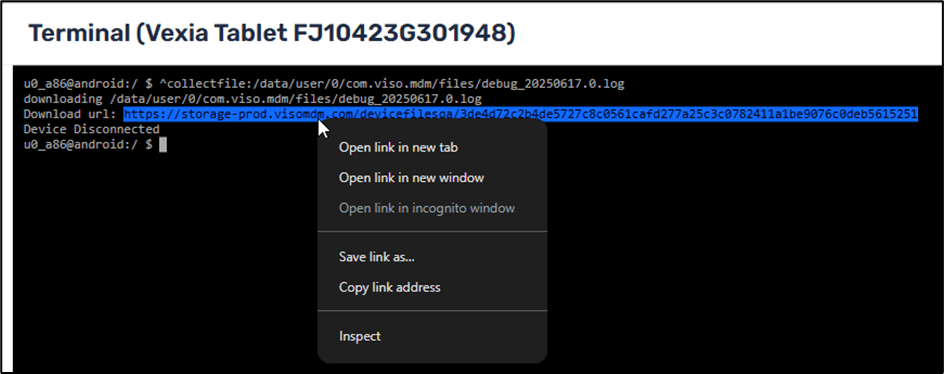
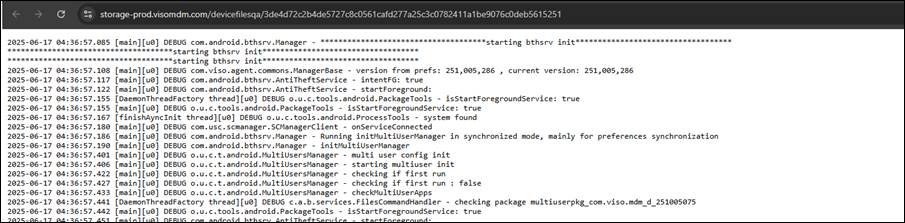
4. When we open the URL in a new tab, we will be able to view the log file: