









 TV Operators
  Healthcare
  Digital Signage
  Hospitality
  Education






 TV Operators
  Healthcare
  Digital Signage
  Hospitality
  Education
Overview
The Views option allows you to create a specialized type of Kiosk device that displays streaming video content and allows access to a limited number of applications as well. The View can be in the form of still images or video clips. When you execute a View, the remote devices in your fleet will continuously display this View in a loop. However, you may wish to pause the display of a View momentarily to access the other apps and functions on the remote device. You can pause the View either
- From the Radix Device Manager side, using the Stop Kiosk or Stop View commands, or
- From the remote user side, by accessing a menu on the device.
We will describe how to employ these two methods of pausing a View.
Method One: Using the Stop Kiosk or Stop View commands
To access the Stop Kiosk command:
1. Click on the Devices icon in the sidebar menu in the Radix Device Manager to open the Devices Console.
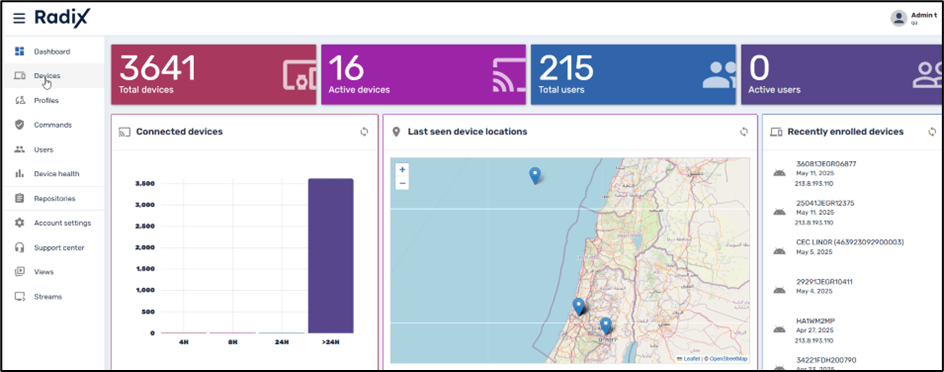
2. Click on Groups on the far right and find the group that is displaying the View presently. In our example, we are interested in group “aep”.

3. Click on the three-dot menu and select the Kiosk command to open the repository of Kiosk options.
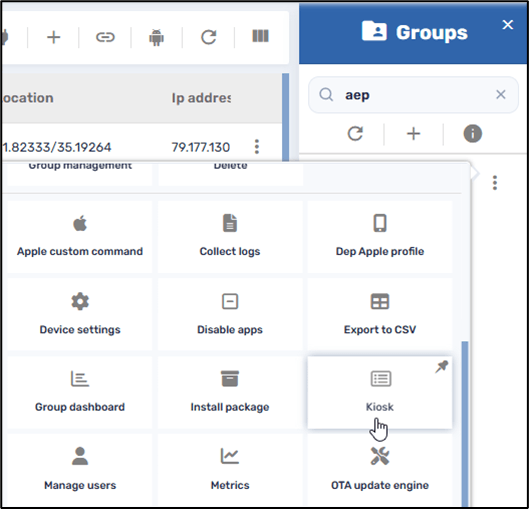
In the Kiosk repository, select the None option, and click Apply in the lower right. This will temporarily remove any View option displaying on the remote devices in the group.
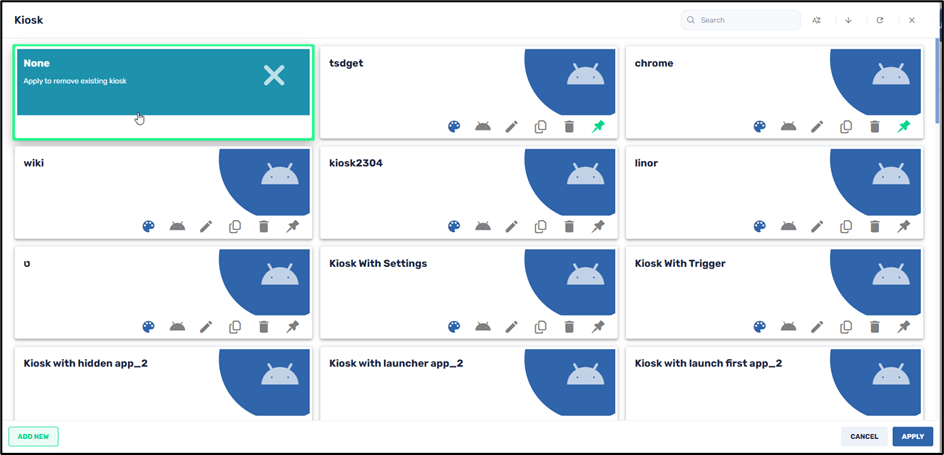
You will receive a notification that the Radix Device Manager has sent a command to stop the View. This will stop the View running on the remote devices.

Alternatively, you can pause the View by using a Stop View command:
1. Click on the Devices icon in the sidebar menu in the Radix Device Manager to open the Devices Console.
2. Click on Groups on the far right and find the group that is displaying the View. In our example, we are interested in group “aep”.

3. Click on the three-dot menu and select the Views command to open the repository of Views options.
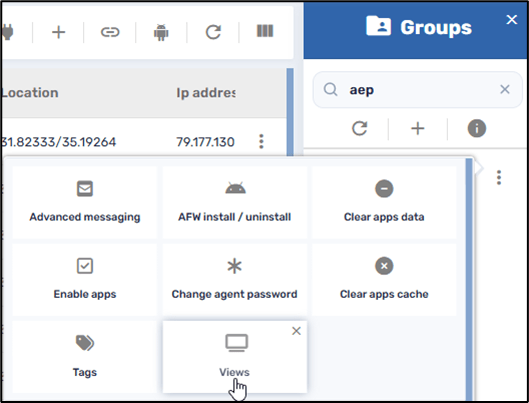
4. In the Views repository, select the None option, and click Apply in the lower right. This pauses the Views option from displaying on the remote devices in the group.
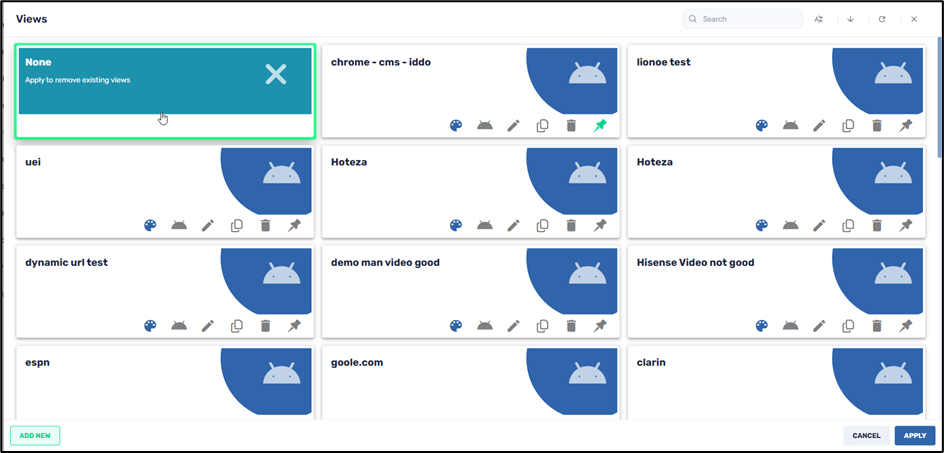
You will receive a notification that the Radix Device Manager has sent the command to stop the View. This pauses the display of the View on the remote devices.

Method Two: From the Remote User side
Alternatively, the remote user can stop the running of the View by pressing the Volume Down-Volume Up buttons on the device several times in quick succession. The following menu appears on the device:
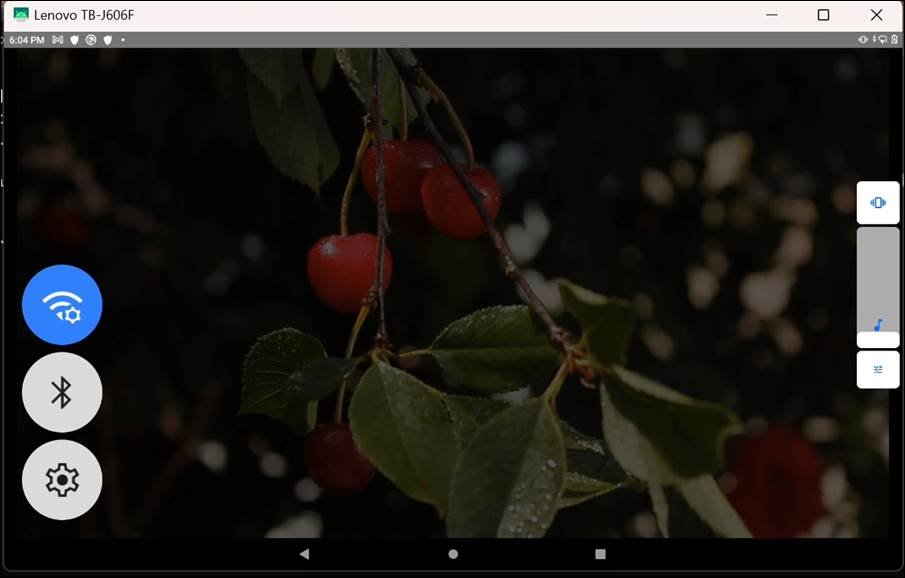
The menu consists of three icons:
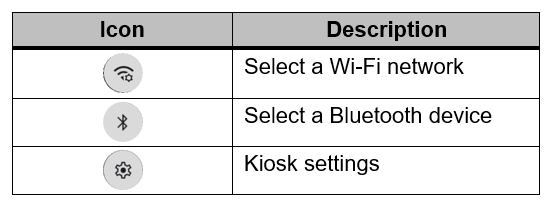
- Tap on the Kiosk Settings icon to open the following menu:
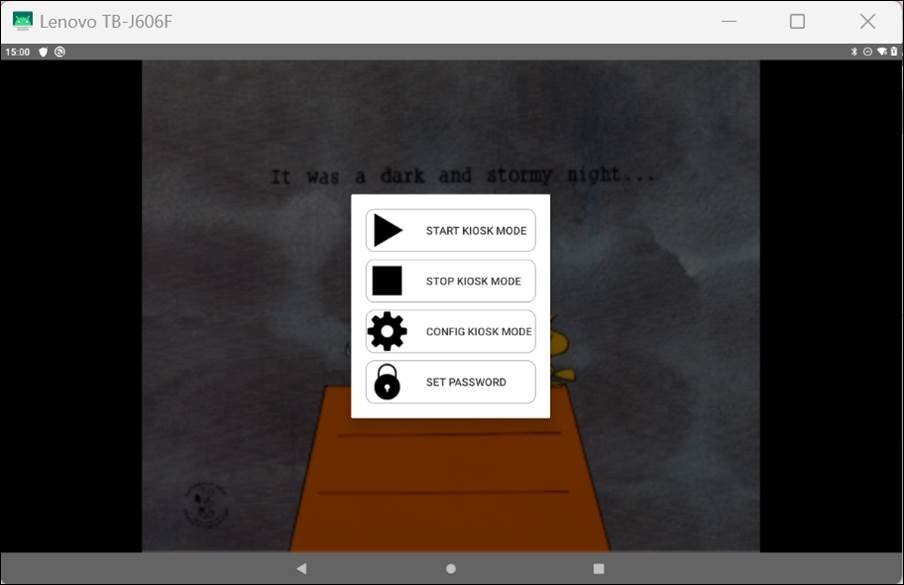
Here is an explanation of the icons in the menu:
2. Start Kiosk Mode will resume the View.
3. Stop Kiosk Mode will stop the View and allow the remote device to revert to normal functionality. When you tap on Stop Kiosk Mode, you receive a prompt if you want to resume the View after the device restarts:
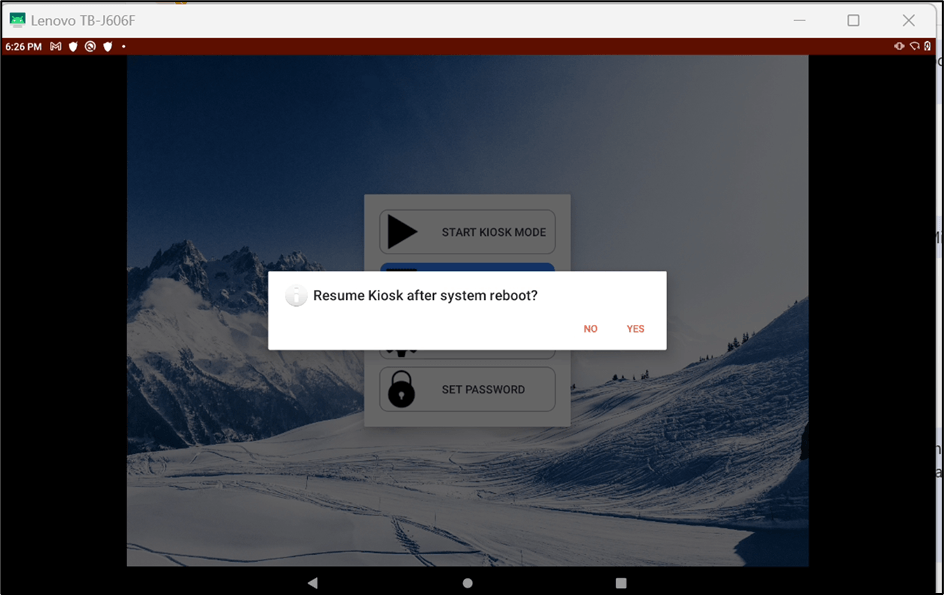
Note: The Stop Kosk Mode command will only stop the View for a few minutes. It will be enough to allow you to use the other apps on the remote device until it goes back to displaying the View.
4. Configure Kiosk Mode will allow you to create a whitelist or blacklist of URLs and applications, and whether to allow installing apps on the remote device, and other device settings.
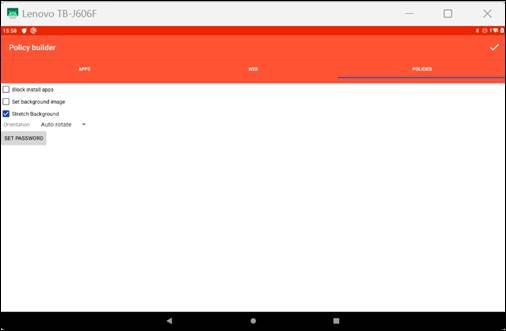
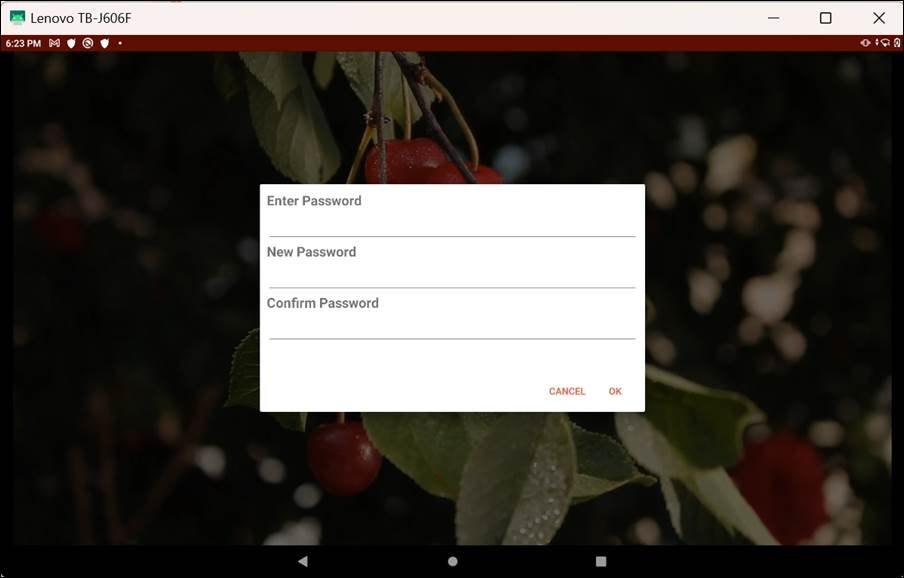
5. Set Password allows you to set the password to access the Viso Agent device settings screen.