







 TV Operators
  Healthcare
  Digital Signage
  Hospitality
  Education




 TV Operators
  Healthcare
  Digital Signage
  Hospitality
  Education
Overview
After creating and displaying a View option on remote devices, this locks the devices into just displaying that View (along with being able to run specific apps, if you associated the apps with the View). If you want the remote devices to revert to their full functionality, you will have to edit the View and remove the devices from that View. You will be able to display another View on the group of devices only after stopping the View presently displayed on those devices.
You can disassociate a device from a View in one of two ways:
- Removing the Group from the View
- Removing the identifying tag from the device or group of devices
If you assign a group to two views at once, the devices in the group will start displaying the second view as soon as you disassociate the group from the first view.
Method One: Removing the Group from the View
To remove the group to which you have applied the view:
1. Click the View icon on the view that you are currently displaying.

2. In the drop-down list in the upper left corner, select Draft version. This will allow you to modify the View.
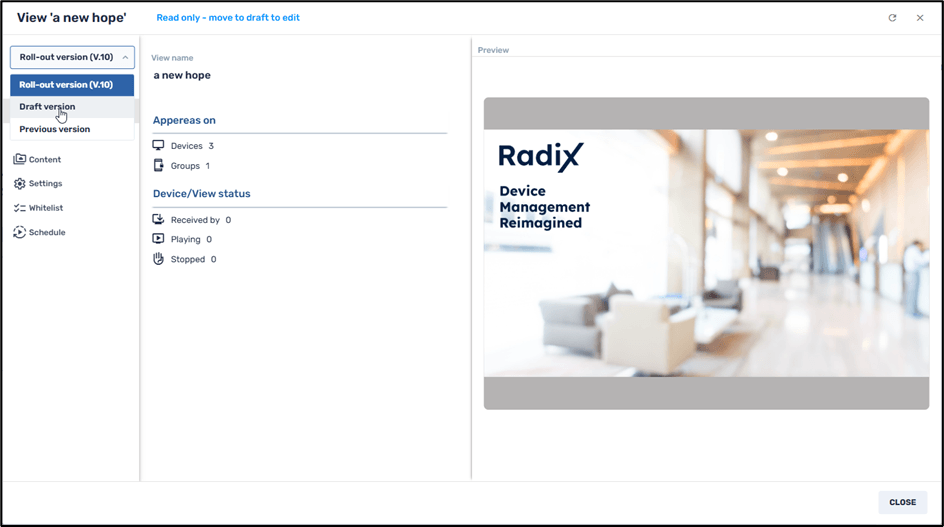
3. Go to the Population tab.
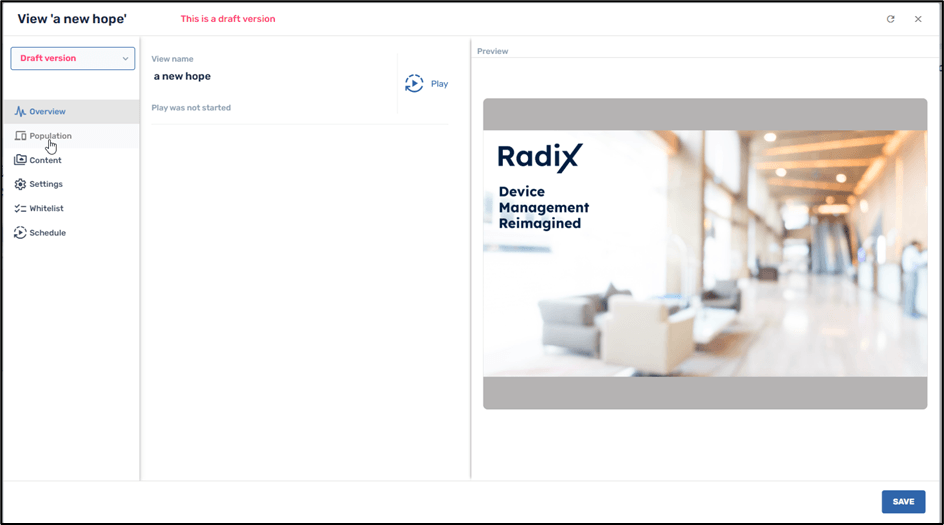
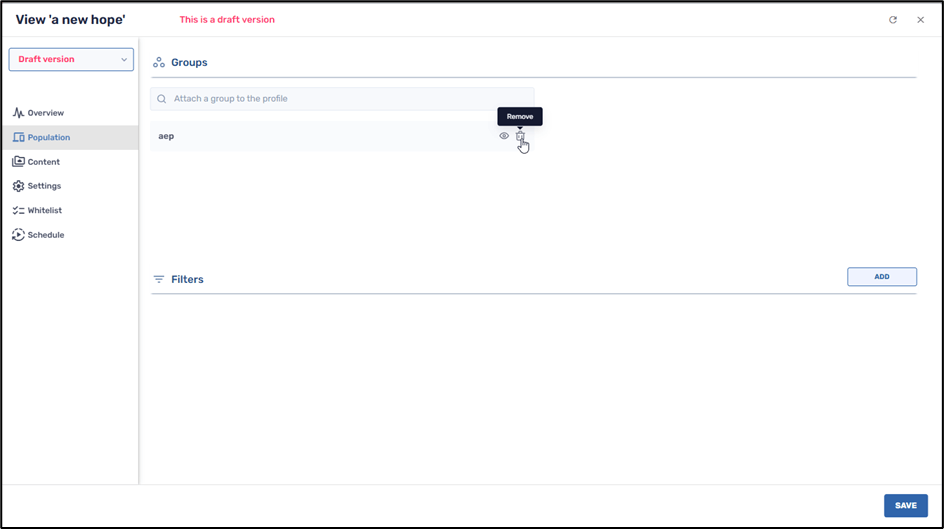
4. In the Groups pane, remove the group associated with the View. In the example below, we will delete the group “aep” from the View.
5. When you click Save, you will receive the following notification that you are saving the View only in “Draft” version. This new draft will not go into “roll-out” mode until you click on Play in the Overview pane.
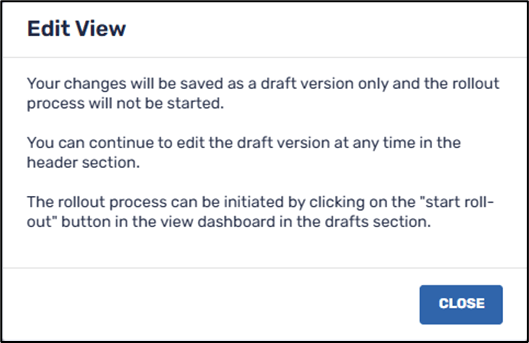
6. Close the notification window and click on Play in the Overview tab in the Draft Version window.
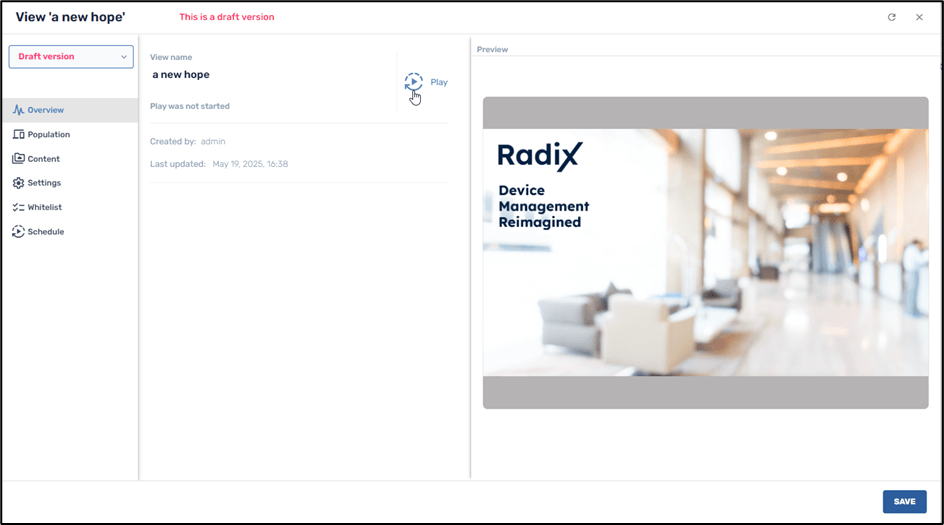
The Radix Device Manager will prompt you if you wish to activate the new version of the view, with no group associated with it:
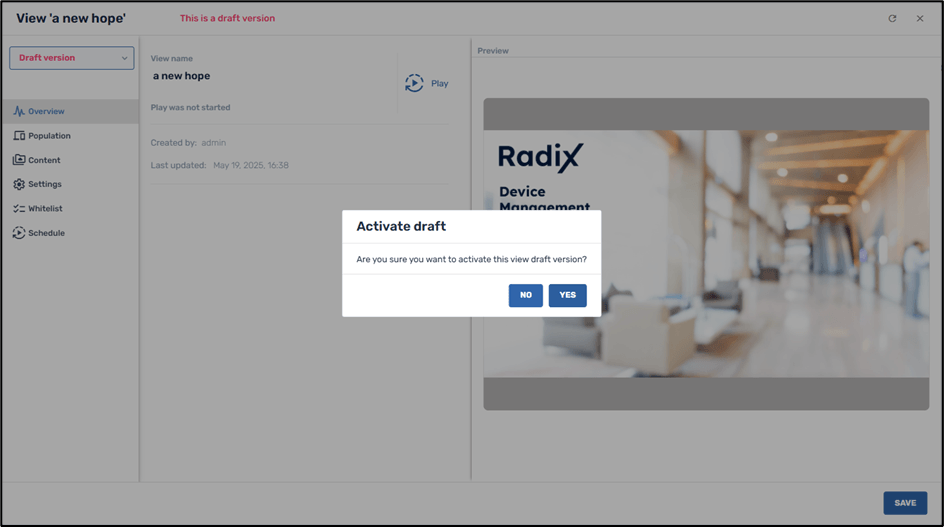
7. Click Yes to activate the draft of the View. The View is now without the group that was associated with it. This will close the notification window. In addition, you will see that the View is now associated with no devices and groups.

The View appears on 0 devices and 0 groups
The devices in the group will stop displaying the View.
Method Two: Removing the Tag
Another method of stopping the device from displaying the View is to remove the identifying tag from the individual device or group of devices. This will also disassociate that device from the View.
To remove the tag from an individual device:
1. In the Devices Console, find the device from which you wish to delete the tag that associates the device with the View.
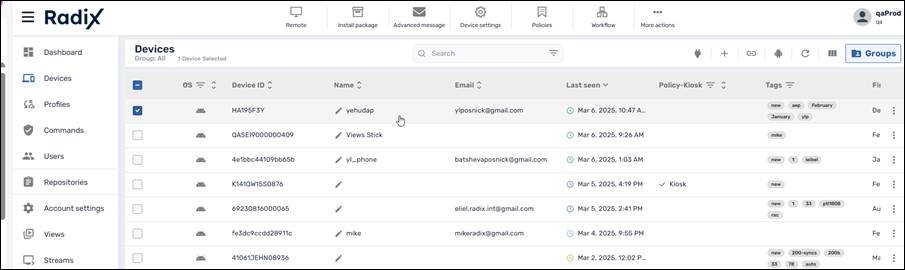
2. In the Device Dashboard, go to Manage>Tags.
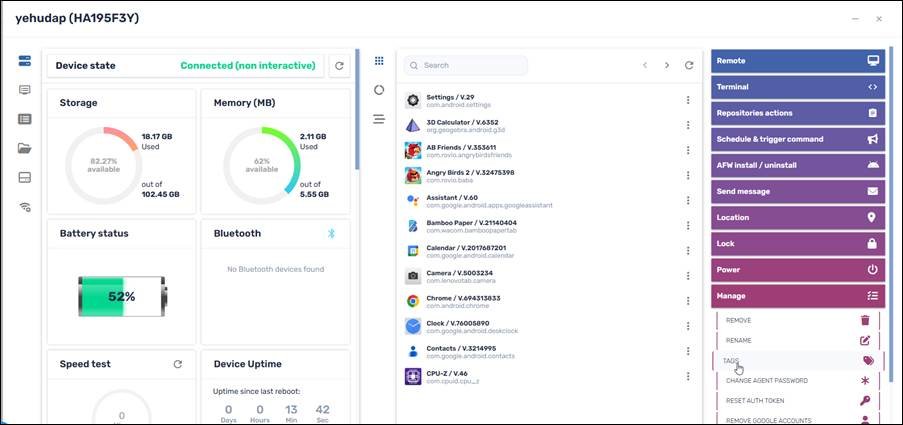
3. In the Tags window, delete the tag that associates the device with this group. In our case, we will delete the tag “ylp”. Click on the x icon and click Confirm.
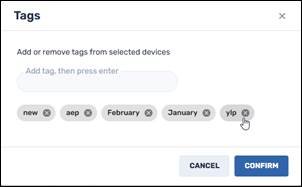
The selected device will stop displaying the View.
Deleting a View
To delete a view from the Views console:
1. In the row of the view, click on the Delete icon.
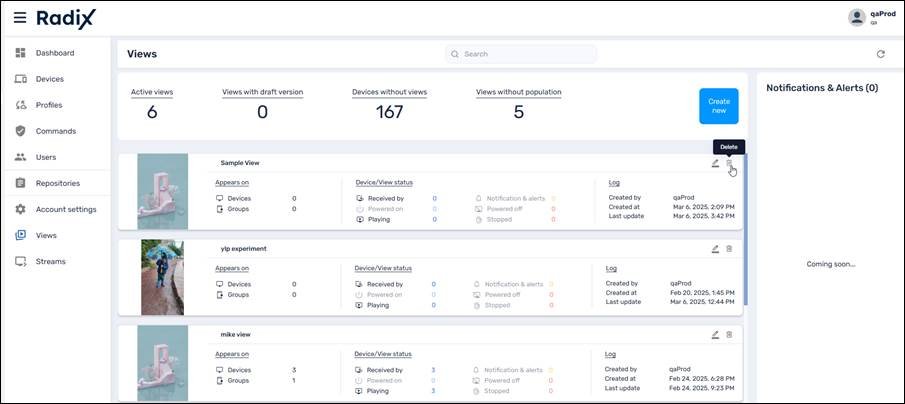
The Device Manager prompts you if you are sure that you want to delete the selected view:
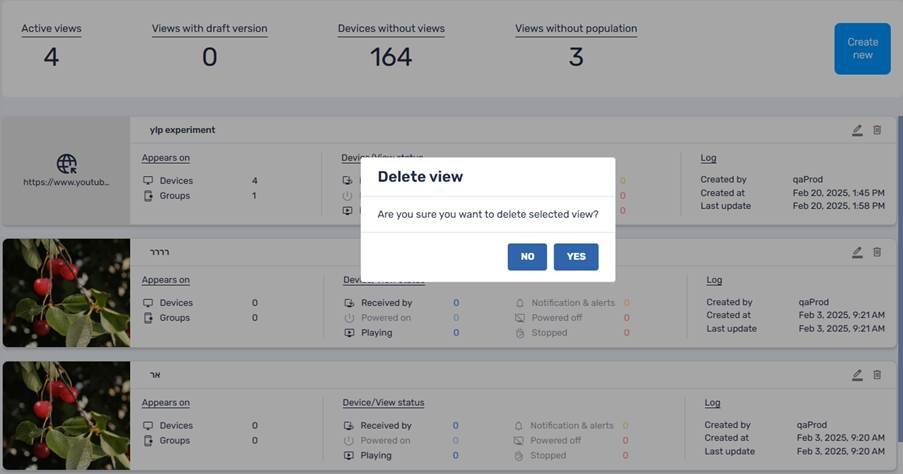
2. Click Yes to delete the view.