








 TV Operators
  Healthcare
  Digital Signage
  Hospitality
  Education






 TV Operators
  Healthcare
  Digital Signage
  Hospitality
  Education
Overview
The Radix Device Management Platform supports creating a View: a specialized Kiosk option that displays video content from a company URL, as well as specific apps on remote devices. You can also employ a dynamic URL that can determine the settings and properties of the remote devices that display the URL.
Advanced URL Parameter Options
Currently, the Radix MDM allows you to specify the following parameters in a dynamic URL:
- System Settings
- System Properties
- Device Data
The syntax of a URL will be in the following format:
https://your domain/page?setting={setting:xx}&prop={prop:xx}&data={data:xx}
Example of a Dynamic URL in a View
As an example, a dynamic URL with specific parameters for device settings, properties, and data can appear as follows:
Let us examine how we set the advanced URL parameters in this example:
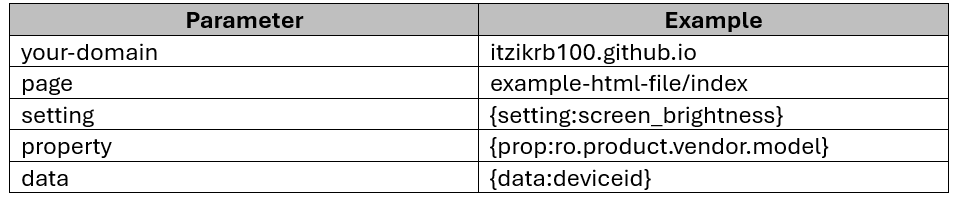
We tailored this URL to display device settings, properties, and data. When we create a View with the dynamic URL illustrated above and execute it on a remote device, the remote device will display the following screen:
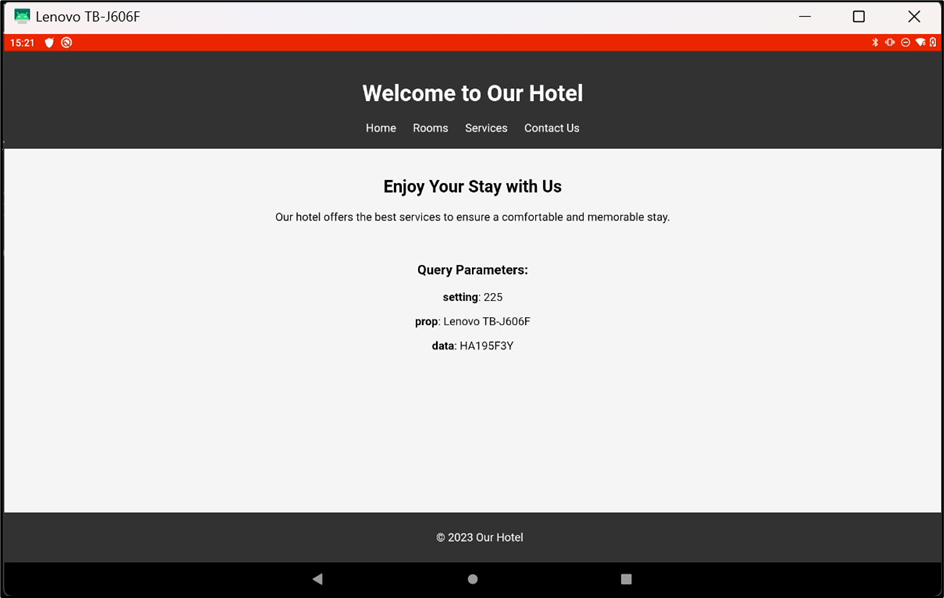
- The system setting displayed is the value of the brightness, which ranges from 0-255.
- The system property displayed is the product vendor model.
- The device data displayed is the Device ID in the Radix MDM (HA195F3Y).
We will briefly explain these parameters.
System Settings
Using the system settings parameter, you can specify that the View will be displayed only on devices with a specific system setting. In the above example, we specified the remote device’s brightness setting.
Other settings options can include, among many other settings options:
- SCREEN_OFF_TIMEOUT – Time before the screen turns off
- VOLUME_RING – Ring volume level
- ACCELEROMETER_ROTATION – Auto-rotate setting
For example, if we want to filter out devices by their volume setting, we’ll change the dynamic URL to be as follows:
The display will be as follows:
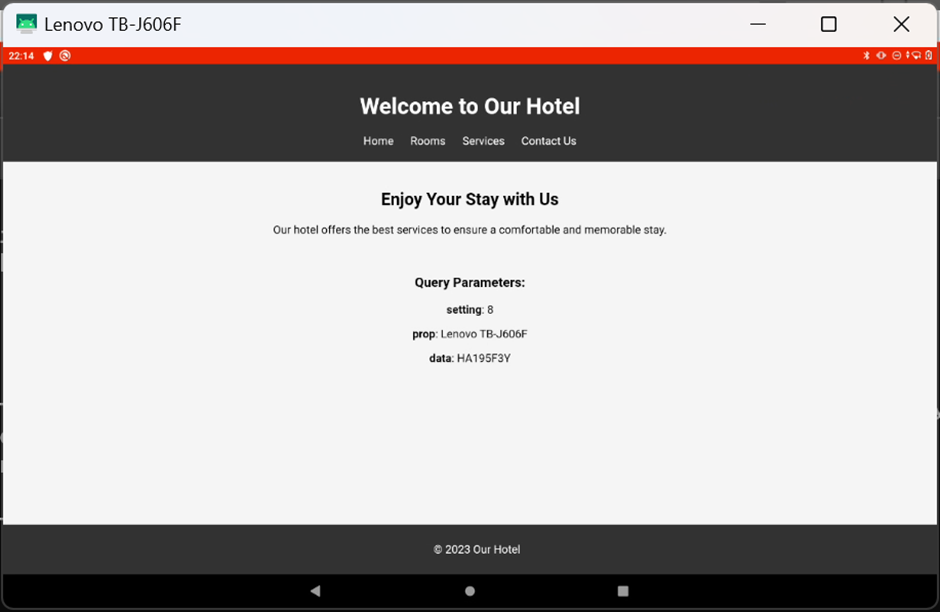
Thus, you can create code that will display a view only on devices with this particular volume setting.
System Properties
You can specify that the URL be displayed on devices with a specific property. In our example above, the system property that we selected was the product vendor model. Thus, you can tailor your fleet so that the view will only be displayed on Lenovo TB-J606F devices.
If we go to the device’s dashboard, we can find the device’s system properties here:
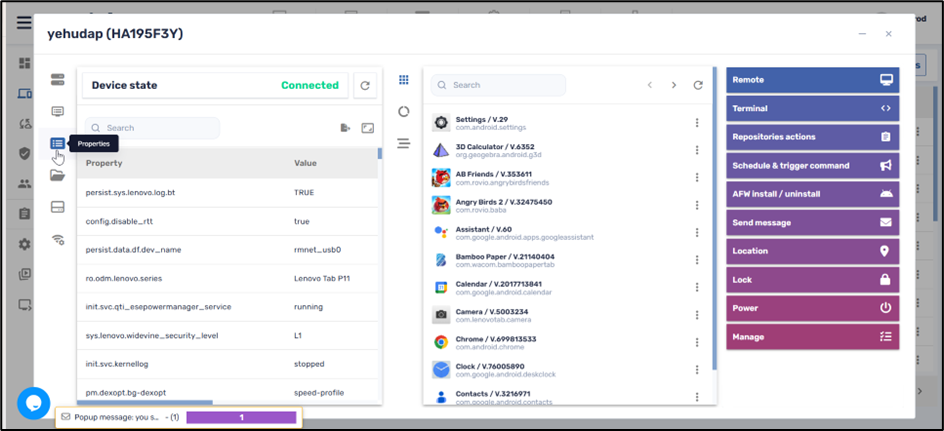
The product vendor model is Lenovo TB-J606F.
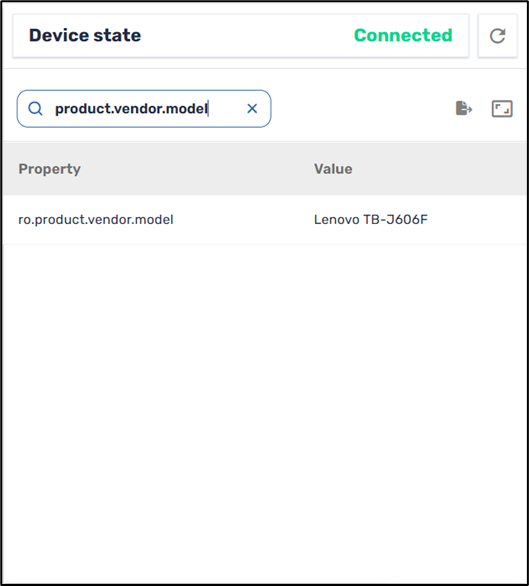
This is displayed in our example above.
Let us select another Device Property, such as the Product Vendor Brand. Instead of the syntax
prop = {prop:ro.product.vendor.model},
we will try
prop = {prop:ro.product.vendor.brand}.
The dynamic URL now appears as follows:
When we run this View on a device, it will display the following:
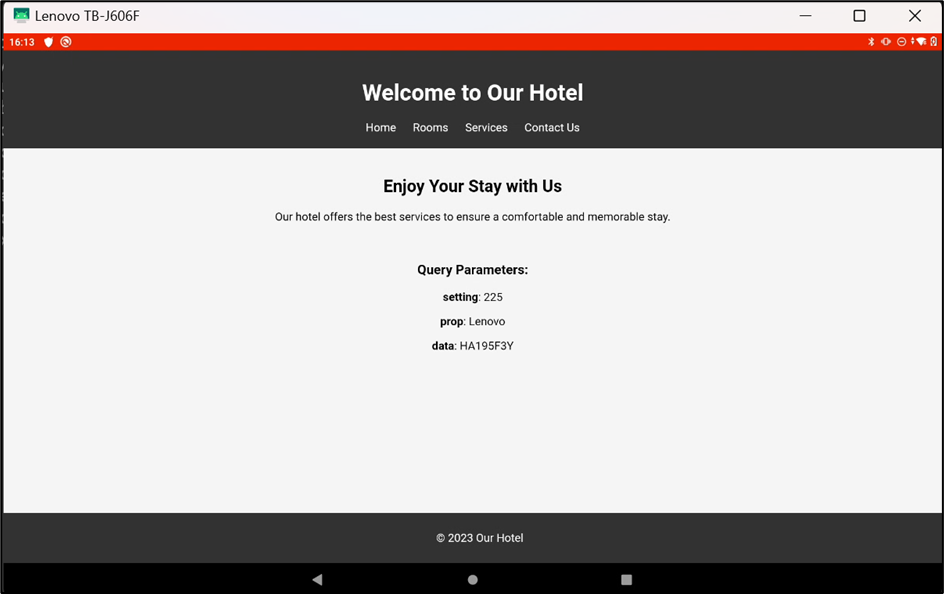
Thus, we see that with this setting, you can use the information to display the View only on Lenovo Devices.
Device Data
You can engineer your fleet to display the View only on devices with specific device data. In our example above, the device data that we selected was the Device ID in the Radix Device Manager. The Device ID appears in the Device Console.
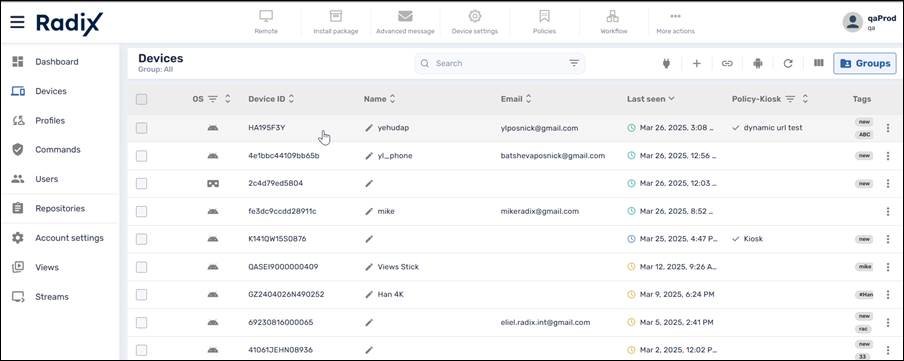
The location of the Device ID in the Device Console
Note: Presently, the only device data option that can be specified is the Device ID.